Rambling
- so we setup a synced origni-copy database seutp in notino once. in salurbal-etl#285) it was Fer’s P&P databse and we wante synce contrablabl verison for DMC to track data bundle Status
- Here we are just genrailzie adn dadopting it to aprotocl whichc anc be used by others foremxpale for caro and maanuscrpt database.
- below is the distilled protocl fomr the roignal PR
Protocol
Checklist to reproduce the sync from scratch. Assumes the Claude Notion connector is set up, so Claude does the schema and row work and only automations need the Notion UI.
- 🤖 Claude does it through the connector.
- 🧑 You do it in the Notion UI.
- ⚠️ Unverified or unclear; iterate here.
Live test instance (2026-11-10): Origin Database → Copy Database, under Notion Synced Databases Protocol Test. Checked boxes reflect that instance.
Permissions config
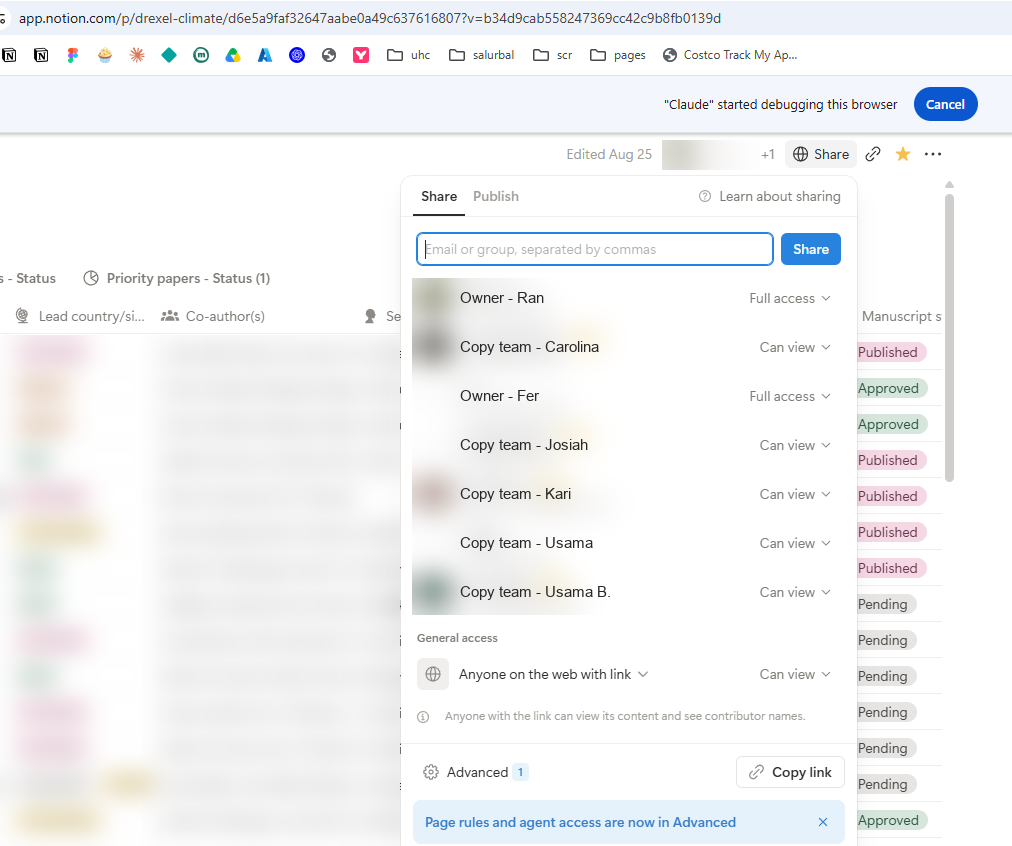
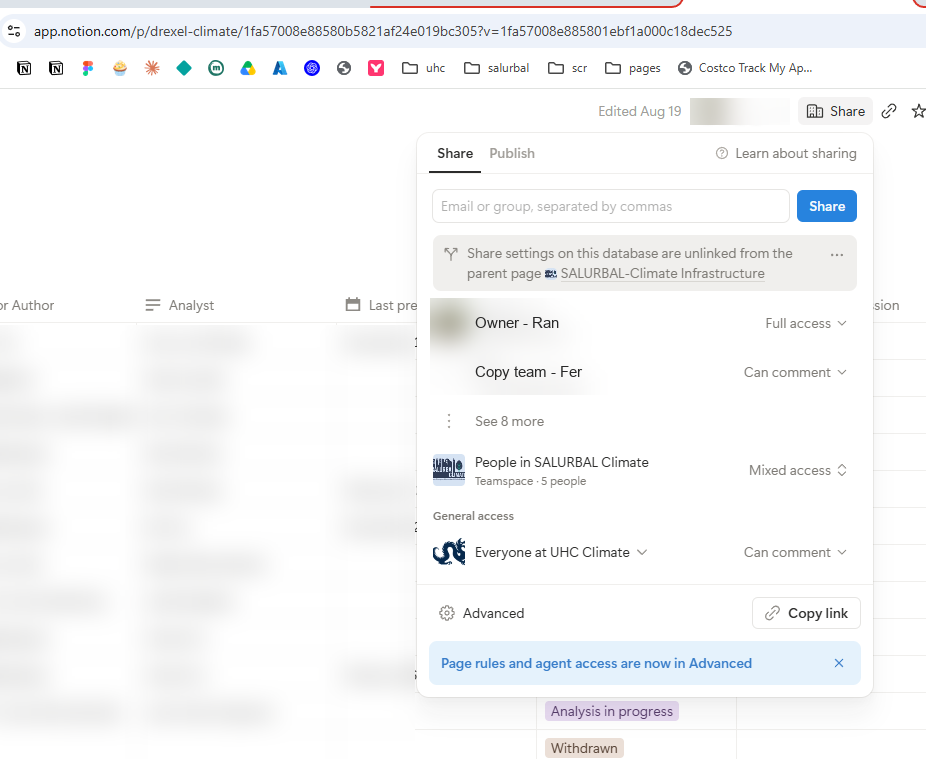
Set in each database’s Share panel. View on Origin is enough for the rollups to resolve; the Copy team only needs edit where its own new_ columns live.
| Database | Owners | Copy team |
|---|---|---|
| Origin | Full | View |
| Copy | Full | Edit |
DMC reference (2026-11-10): Origin matches the table; Copy has the team at Comment, which blocks filling new_ columns, so it should move to Edit. (Snip: Origin) (Snip: Copy)
Setup
1. Relation
2. Automation
🧑 Automations are not exposed through the API or the connector, so this whole step is manual.
3. Test
4. Rollups: Origin → Copy
5. Rollups: Copy → Origin (optional)
6. Copy-only columns
7. Backfill (only if Origin had rows before step 2)
8. Maintenance
Reference
Ref 2. Initial protocol (migrated from repo)
Notion has no native “synced database.” This recipe fakes one: the upstream team owns the rows and core columns, and the downstream team sees them live (read-only) and adds its own columns in a separate database.
- Upstream: the source of truth. Rows are created here.
- Downstream: one row per upstream row, plus the downstream team’s own columns.
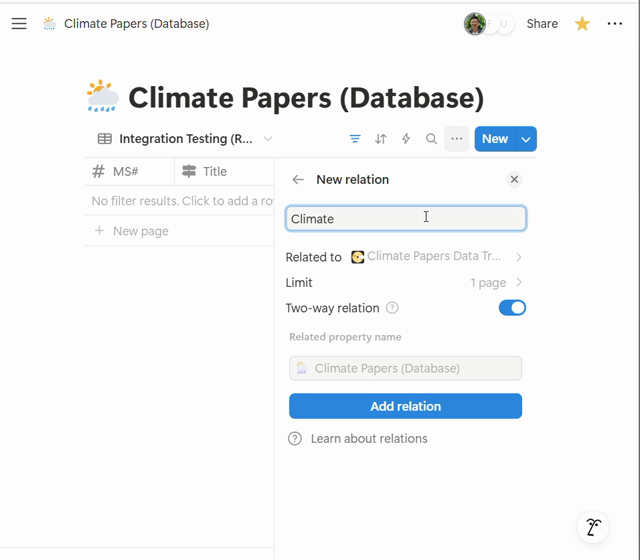
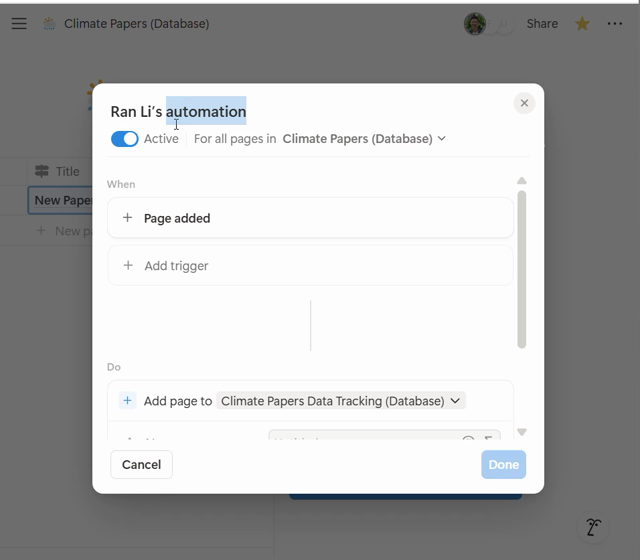
Screenshots are from the original build (May 2025, salurbal-etl#285): upstream Climate Papers (Database) → downstream Climate Papers Data Tracking (Database).
1. Two-way relation
In the upstream database, add a Relation property pointing at the downstream database.
- Limit: 1 page (one downstream row per upstream row).
- Two-way relation: on. This creates the matching relation property in the downstream database.
2. Automation: trigger
In the upstream database, open the ⚡ automations menu and click New automation.
- Scope: For all pages in the upstream database.
- When: Page added.
3. Automation: action
- Do: Add page to → the downstream database.
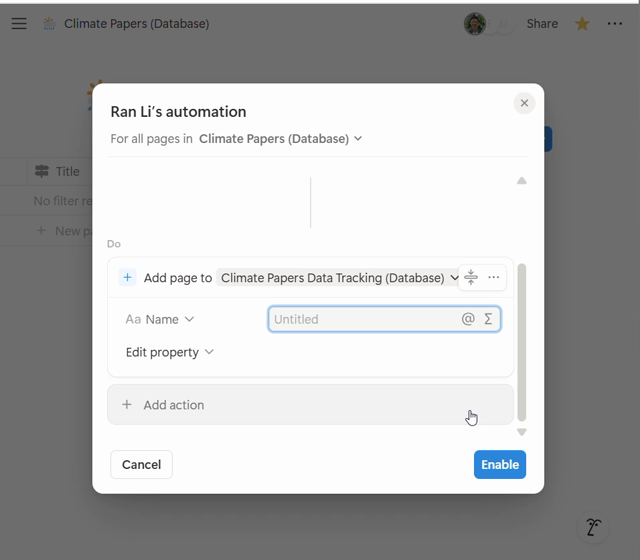
- Edit property → the downstream relation (here
Climate Paper) → Trigger page. This links the new downstream row back to the upstream row that fired it. - Name: set to the upstream title (
@→ Trigger page → Title). In the original build this was left as Untitled, so the first downstream rows had blank names (see step 4).
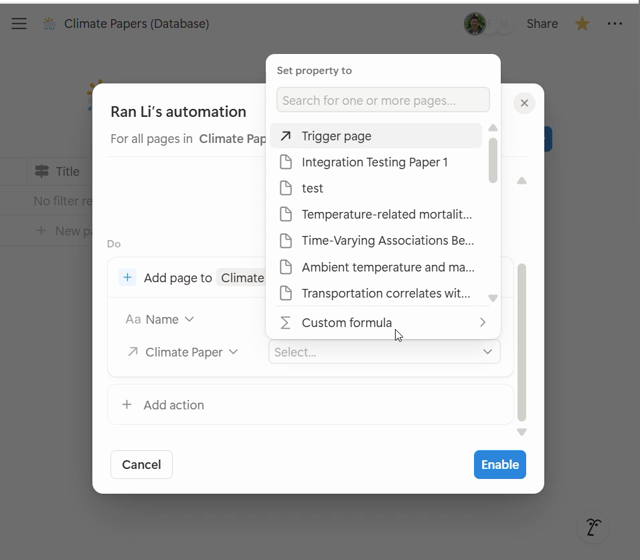
Click Enable.
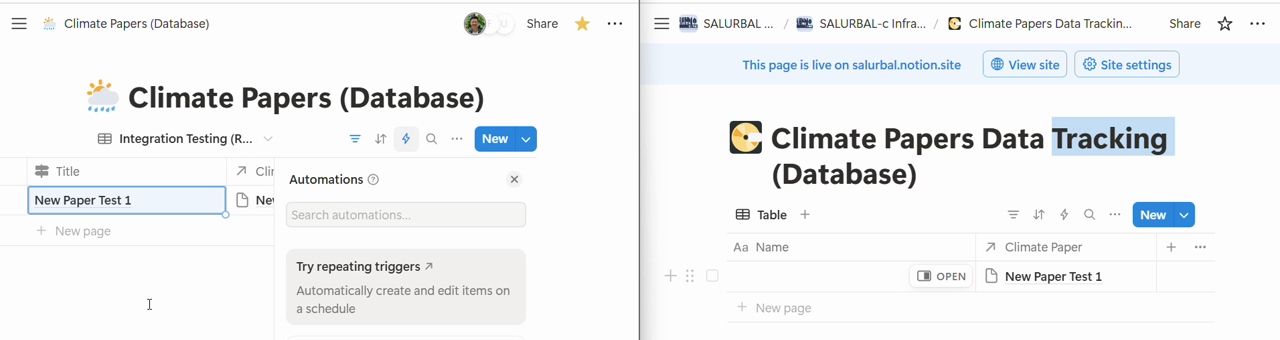
4. Test
Add a row upstream. A row should appear downstream with the relation filled.
5. Rollups (downstream)
For each upstream column the downstream team should see, add a Rollup in the downstream database: relation = the step 1 relation, property = the upstream column, show = Show original.
- Rollups are read-only, so the downstream team can’t edit upstream values.
- The reverse works the same way: upstream can roll up downstream columns (e.g.
Data Status (DMC)) to see progress without editing it.
6. Downstream-only columns
Add the downstream team’s own properties directly in the downstream database. The upstream schema stays untouched.
Gotchas
- Backfill: the automation fires only on new pages. Rows that existed before it was turned on need downstream rows created and linked by hand.
- Deletes don’t sync: deleting an upstream row leaves an orphaned downstream row with an empty relation. As of 2026-11-10, Data Bundle Tracking has 55 rows, 7 of them unlinked, against 48 upstream rows.
- Limit is one-sided: the limit 1 set in step 1 applies only to the upstream side. The downstream relation is unlimited, so filter for duplicates.
- Not inspectable: automations aren’t exposed through the Notion API or MCP, so this page and its screenshots are the only record of the configuration.
- Permissions: whoever creates the automation needs edit access on the downstream database.